LEARNING PREFERENCES DESCRIBE one way to organize thinking about digital experiences. Individuals often have a sensory preference for how they access new information, but in truth, we all learn through all our senses. The VARK (visual, aural, read/write, and kinesthetic) learning preferences model (vark-learn.com, 2013) has been in existence since the 1980s.
Visual learners prefer to work with images, such as pictures, charts, maps, drawings, and graphs. Studies indicate that about two-thirds of adults show visual preferences for learning.
Elementary classrooms tend to have more visual stimuli than secondary classrooms, but a quick scan of an elementary classroom will show that the visuals are often colorful borders or backgrounds on bulletin boards or posters. The text that predominates on classroom walls appeals more to read/write learners than to visual learners.
In contrast, aural learners prefer to listen to instruction or other students and to discuss what they have learned. Kinesthetic learners like to use all their senses, preferring hands-on
experiences and learning from real-life case studies. Students who are read/write learners do best when reading and writing visual text. For more information on VARK learning preferences, see the VARK site (vark-learn.com/introduction-to-vark).
For the purposes of this book, activities for read/write preference have been dispersed throughout this chapter on visual learning (reading and creating with graphics) and chapter 6 on aural learning (reading and writing text). Chapter 7 discusses the kinesthetic learning preference.
Most students will not show a strong preference for any one type of sensory experience. Still, teachers should aim to provide experiences across the sensory spectrum to include all students in the learning process. I, for instance, have poor visual memory and struggle to learn through visual media such as videos or pictures. Reading teachers who insist that readers must visualize what they are reading frustrate people like me who simply cannot make pictures in our heads.
Being required to create visual models has strengthened my visual sense-making. I wouldn’t want every new idea to be presented to me visually, but I appreciate that visual materials sometimes capture ideas better than words can.
Drawings
When technology is defined simply as the use of any tool, the act of drawing with a pencil or crayons is probably children’s introduction to creating visuals with tools. Early-childhood teachers encourage students to draw to communicate ideas, and children draw pictures to plan what they will write as they learn to compose.
Like reading and spelling, drawing skills progress through predictable stages. A chart titled “Drawing Development in Children” by Viktor Lowenfeld and Betty Edwards, adapted from teacher inservice materials by Susan Donley (1987), outlines the stages of drawing skills well (learningdesign.com/Portfolio/DrawDev/kiddrawing.html). The goal is not to identify students in particular stages, but to understand that students progress through predictable stages at differing rates. Thus, their work should be compared only to previous work they have done. Portfolios of drawings throughout the year can illustrate each student’s growth in visual representation. Certainly, secondary art teachers value visual portfolios!
Drawing is one way to assess what students are thinking or understanding. Asking students in any grade level to draw processes or create visual models helps teachers informally assess individuals’ perceptions of content. Also, when students use original drawings or photos in their projects instead of clip art or pictures taken from the internet, they do not face copyright issues.
Drawing used to be the way I introduced kindergarteners to computers. However, with the proliferation of internet-only devices in schools, such as Chromebooks, students often have few opportunities to draw digitally unless a teacher uses an online drawing tool. For teachers whose students use iPad drawing apps or full-fledged computers, drawing is still a possibility.
Options for Drawing Applications
Online drawing applications enable teachers to continue to engage students in drawing digitally no matter what devices they have. I’ve listed only a few of the online sites I found; if none of these suits your students, you can find others through a simple search. Except for Pixilart, all the sites are appropriate for all grade levels. Generally the online sites will accommodate all levels of drawing expertise as well.
Online Drawing
Sketchpad (sketch.io/sketchpad) has basic tools and some advanced capabilities such as layers. Pictures can be exported in multiple formats. Sketchpad can be integrated into Google Classroom as well. Tutorials on the site explain the tools and processes for using and integrating Sketchpad.
Canvastic (canvastic.net/net.html) is a simple drawing tool free to use online. Versions for iPads and downloadable software must be purchased.
Drawisland (drawisland.com) is designed for online, iPad, or iPhone and requires no sign-in.
The drawing space has intuitive art tools and can be layered and saved. Artwork is visible only to the artist and will still be available when the user returns to the site.
Kleki (kleki.com), like Drawisland, requires no login and saves the drawings in the local driver or on the computer. Standard drawing tools are available, and accessing the help screen brings up information about tools and videos.
Pixilart (pixilart.com) was designed for young artists to support the fundamental skills of designing digital art, games, and programming. Students must register, so this site is not appropriate for under age 13, unless parents give permission. The site is a social platform, so once drawings are published, others can comment. The site also supports areas where special interest groups can share their art. The art gallery on this site shows a wide spectrum of skill levels.
SketchUp (sketchup.com/education/sketchup-for-schools) is 3D modeling software. Schools signed up with G Suite for Education have free access to a browser-based version integrated with G Suite. Free curriculum tutorials are available by grade levels (K–5, 6–8, and 9–12).
Additional educational materials are available at 3DVinci (3dvinci.net). Project Spectrum uses SketchUp to help children with autism spectrum disorder express themselves and connect with one another (builtr.io/designing-a-better-world-for-all-the-project-spectrumseries).
Downloadable Art Software
In classrooms where students can work on computers with hard drives, a few downloadable software programs are worth considering.
Tux Paint (tuxpaint.org) has been freely available for young children for more than a decade.
It continues to be upgraded regularly by volunteers and can be used on any platform (PC, Mac, and Linux), including older machines and both iPad and Android handhelds. The tools are robust and the program has been translated, at least in part, into 130 languages.
Krita (krita.org/en) is a free painting tool designed for professional artists and available for PC, Mac, and Linux. This is sophisticated software for serious artists.
Inkscape (inkscape.org/en) is a free professional vector graphics software similar to very expensive programs such as Adobe Illustrator or CorelDraw. The program will load on PCs, Macs, and Linux systems. This program would be appropriate for secondary students and school art departments.
Project Ideas for Drawing
Allow the following projects to serve as springboards for your own ideas. Think about how these ideas for drawing might be adapted to fit your curricular objectives or grade level.
Self-Portraits
Open the year and introduce the drawing program for young students with self-portraits.
These pictures can be saved as part of a digital portfolio or emailed to parents. If the selfportrait project is repeated near the end of the year, parents will have direct evidence of their children’s growth in self-awareness and drawing skills. Although a simple activity, the act of creating a self-portrait sits high in Bloom’s taxonomy because it requires students to think abstractly about their bodies, which they see only in reflections, and to create a representation.
Favorites
The possibilities of favorites extend into students’ personal lives as well as their classroom recall of content. For instance, personal favorites may be holidays, foods, sports, hobbies, summer activities, animals, or books. Students could also draw favorite academic choices: book characters, science topics, historic figures, scenes from a read-aloud, or activities at school. Such drawings, accompanied by captions, show the variety of personalities in a classroom.
Labeled Drawings
Have students generate pictures of content concepts, such as the body of an insect, model of a chemical reaction, or cross-section of an eye. Ask them to label the parts, either from a word bank or with best-guess spelling. This is a much better assessment of understanding than a worksheet with blank lines for writing labels. On predesigned worksheets, students need to recall information only when they label parts, processes, or events. As a result, teachers can only tell if responses are right or wrong and do not know what students were thinking when they chose the labels. However, when students draw their own representations and label them, the drawings reveal the depth of their knowledge as well as misconceptions they may have. This task is appropriate for all grade levels because secondary students study systems, vocabulary, and other assessable concepts that can be drawn. Asking students to draw their representations of things, processes, or events raises the activity’s thinking level on Bloom’s taxonomy from remembering to applying.
Illustrations
Drawings can illustrate other projects. When students create illustrations, they can insert the pictures into ongoing projects, such as desktop publishing, slideshows, or online projects.
Students have used self-created pictures as re-creations of what they’ve seen under a microscope for science reports; illustrations for stories, books, and reports; clues for riddles; and replacements for words in rebuses. Because students own the rights to their original works, they can publish the illustrations online or in printed materials.
Math Animals
Explore the How to Draw Funny Cartoons (how-to-draw-funny-cartoons.com/drawanimals.html) website section for intermediate students on drawing animals. The animals are basically made with rectangles, triangles, and circles. The website offers tutorials for each animal. To make sure young students understand how the tutorials work, lead them through a tutorial on drawing one of the animals. Then encourage them to try one on their own. They should keep count of the numbers of each shape they use. Then they can create riddle cards.
The outside flap would say something like: “What do you have when you add 1 rectangle, 1 square, 5 triangles, and 2 circles? Not just 9 shapes but …” inside, “… a penguin!” The “How to draw” tutorials could be used for multiple projects across grade levels. Some tutorials are quite advanced and may interest art students.
Timed Sequences
Similar to the previous project, elementary students can use visuals to demonstrate their understandings of a sequence of events. If students are also asked to include labels in their drawings, teachers can assess what they know and what may need to be retaught. This process would work for steps of an experiment, the water cycle, a model of how to do a math problem, the seasons, migration patterns, or a crosscut of the eruption of a volcano.
If the cycle or process is sequential and each step has a different drawing, then students can work independently. An example would be the water cycle. Students could draw the phases of the water cycle with one phase per slide in presentation software and complete the work independently. The slides could then be set to advance in a timed sequence of 3 seconds to show how the water cycle works.
If, however, the sequence builds by adding on to an original slide, such as with the life cycle of a plant where the sequence of events happens in the same place but each event is distinct, students may not be able to work independently. The teacher may need to guide students through each step.
For instance, the life cycle of a butterfly can be depicted as happening in one specific tree, but the stages of the butterfly’s life are distinctly different. To illustrate the life cycle of a butterfly, have students follow these guidelines:
1. Create a master picture with trees and other landscape features. Label the features. Save the master picture.
2. Open the master picture and save a copy as “eggs.” Draw butterflies and butterfly eggs on tree leaves. Label the new features. Save.
3. Open the master picture again and save a copy as “caterpillars.” Draw caterpillars on leaves to show them munching. Label the picture. Save.
4. Open the master picture and save a copy as “chrysalises.” Draw the chrysalises hanging from branches. Add labels. Save.
5. Open the master picture and save a copy as “butterflies.” Draw the butterflies hatched from the chrysalises. Add labels. Save.
6. Import the series of pictures into a slideshow. Use the auto timer to advance the slides every 2–3 seconds. The resultant slideshow demonstrates the life cycle of a butterfly.
Some sequences build on one another and might be considered cumulative. An example would be the life cycle of a plant. As with the life cycle of the butterfly, the background picture for a plant stays the same, but each stage of the plant’s life adds additional details onto a master picture. Each stage (seeds, roots, stems, etc.) simply advances the process cumulatively. Other events are cumulative as well, such as the mathematical model of exponential growth or the scientific model of heredity through generations of a family tree.
Visual Representations
Combining words and pictures increases students’ retention of concepts. For instance, when students are learning vocabulary, retention rates increase when they not only use definitions but also have pictures that illustrate the words. Students can create vocabulary books with each word defined, illustrated, and used in a sentence that relates to the picture. Visual representations can also be powerful for conveying content vocabulary in math, science, and social studies. Words such as archipelago or convex can be understood and remembered most effectively when they are accompanied by drawings that make the concepts visible.
Figurative aspects of language, such as similes, metaphors, and idioms, become more understandable and concrete when students create drawings to illustrate comparisons embedded in the language. One classroom of English language learners created a dictionary of idioms with an illustrated page for each idiom.
Photography
Because digital cameras are now embedded into many computers and cell phones, picturetaking has become a common activity in families. The technology of digital cameras has evolved so that even preschoolers can take usable photos. Yet, I find teachers often overlook the potential for photographs as tools for students to use to demonstrate their thinking and knowledge.
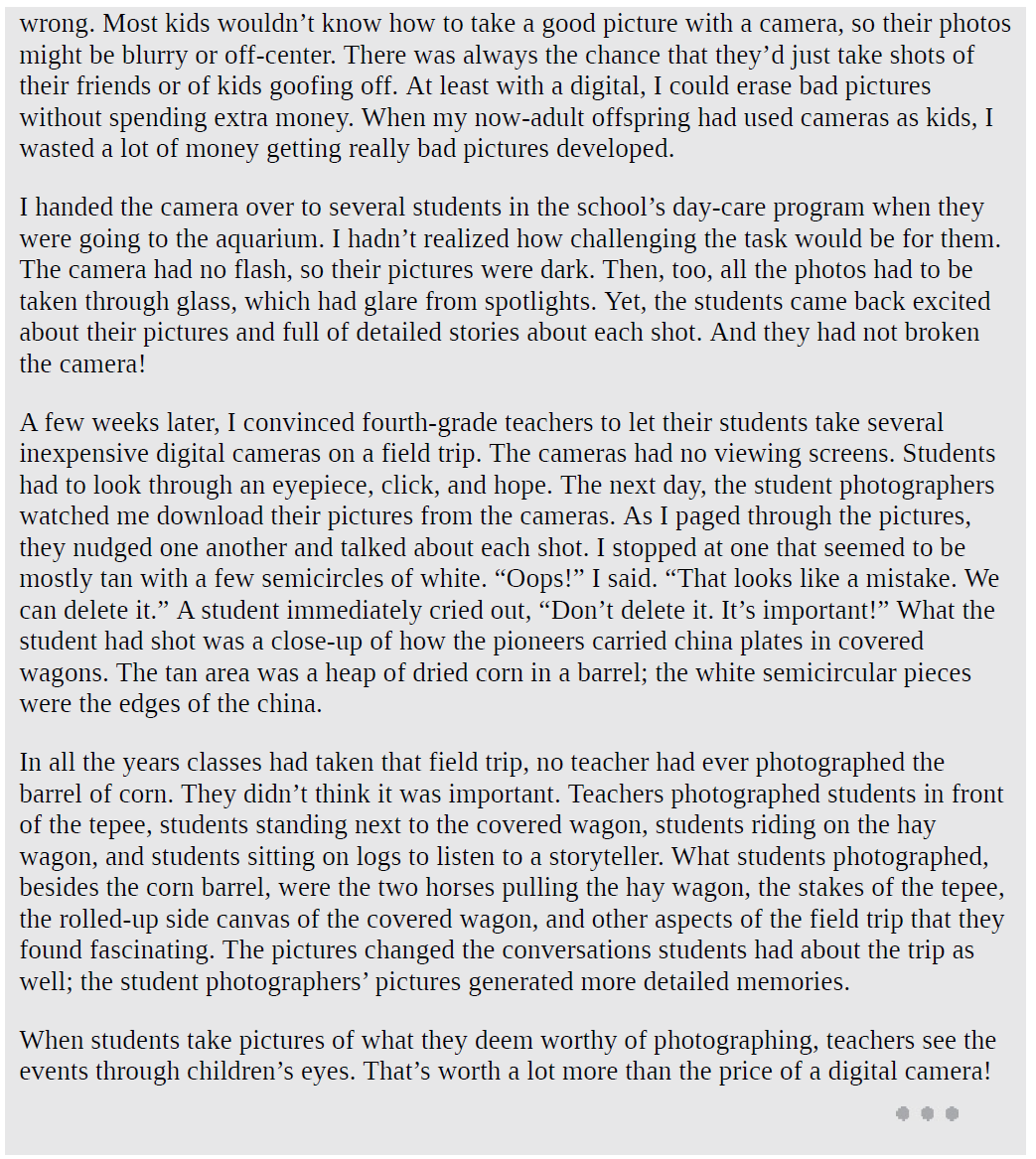
When elementary students use digital cameras, their photos often differ dramatically from pictures taken by teachers and parents. Teens and adults tend to snap pictures of students in settings where they are learning; young students take pictures of what they are learning.
Perhaps pictures also tell you about values: teens value their peers; teachers value students; and students value the new information and experiences in the present moment.
If students have iPads or cell phones, assignments requiring photography are easier than when students are using Chromebooks or laptops. Some Chromebooks and laptops have cameras, but the cameras are often front-facing only. To take a picture, students have to angle the screens and contort their bodies to see how the pictures will look. Resultant photos are often unsatisfactory. Depending on your context, you may want to supplement your classroom with digital still cameras. These can often be found collecting dust in school closets or can be solicited from families who have abandoned their digital cameras for cellphone picture-taking. Do not assume all students will have access to a phone; in my research on fourth through sixth graders, fully 50% of students did not have access to any devices at home.
The cost of printing pictures, particularly in color, remains significant. Now that pictures are digital, teachers have options for using photos without printing them.
Students can upload the pictures and projects to websites or email them to parents. However, a critical issue remains: picture file size.
Picture File Options
Advancements in technology prevent nearly all problems that were once so common with cameras except picture file size. Those who upload pictures to social media may have learned, through experience, how to size pictures correctly. For those with limited experience, the following summary can help ensure that student projects using pictures do not end up too large for emailing or posting to the web.
Picture Compression and Quality
The primary concern with photo extensions is the compressibility of the photos. Compression decreases the amount of required memory, but it also may affect the sharpness of pictures when they are enlarged. For elementary students, pictures should be compressed to ensure that their projects do not become so big they cannot be emailed or posted online.
Photos can be saved as files with different extensions, and each extension has its own characteristics. The following are the four most common digital image extensions you might encounter when using digital cameras.bmp: This file extension is a standard in Microsoft Paint. Students should be encouraged to change this extension to .jpg before they save their drawings. Because .bmp files are huge and high quality, they are difficult to compress without losing quality, so they take much more memory than other files.gif: Popular for websites, .gif files compress without losing quality and can store animations. Their large file sizes make them more suitable for professional web design than classroom projects.jpg or jpeg: This file extension is favored for internet use and should be the file extension of choice for students. Because .jpg files are compressed (a 10%–20% compression is usually enough), they lose quality, but unless they are highly compressed (60% or more), the change in quality is negligible. The .jpg files are easily interchangeable among operating system platforms, such as Windows, Mac, and Linux.
Pictures on Macs should be in .jpg if students want to export them to any other platform.tif or tiff: This file extension is typically used by professional artists and photographers and for files in commercial programs, such as Adobe Photoshop or Corel Painter, so that they retain high quality. The files are huge, even when compressed, and their level of quality is typically not necessary for student projects. Only the smallest .tif files can be emailed.
Changing File Extensions and Resizing Pictures
Sometimes setting a camera to good, rather than best, quality decreases picture file size as well. Yet, if students are placing a lot of photos in one file, as in a collage or slideshow, the combination of pictures, even when taken at good quality settings and compressed as .jpg files, may still take too much memory for the file to be emailed or posted online. In that case, pictures need to be resized to reduce their memory requirements. Resizing is not the same as dragging the edges of a picture to make it look smaller on a page. Resizing requires using a photo-editing software application to change the image.
Large or high-quality pictures require a lot of memory. Shrinking their appearance by dragging the corners does not make the file size smaller. In a slideshow or digital story with many pictures, the large file size of the project can end up too big to upload or email.
To resize the photo to decrease the file size, you have several options:
• Open the picture in a basic photo editing application, such as Microsoft Office Picture Manager, iPhoto, or PhotoScape. Among the editing tools will be a command to “Resize.” Choose the dimension you want for the picture. Often a size in the 3–5 range will be sufficient.
• Web Photo Resizer (webresizer.com), a free online photo resizer and optimizer, requires no registration. Not only can you resize photos, but you can crop, sharpen, add borders to, and rotate them. You can even change them from color to black and white. Once you open this site, after 60 minutes of inactivity, your session will end, and your pictures will automatically be deleted from the site. This is an easy site for students to navigate.
• Pic Resize (picresize.com) resizes and offers special effects tools to enhance photos. This site will also capture, crop, and resize photos from websites, which does not violate copyright law when the images are used for educational purposes. Photos are deleted 20 minutes after previewing the final picture.
Key Skills for Camera Use
Using digital photos is a great way to meet visual learners’ needs while giving all students multimodal experiences. Essentially, teachers can replicate any drawing activity with photography. The difference, though, is that students taking photos will likely be out of their seats and consulting with one another, and students typically stay seated in one place for drawing.
Key Skills for Using Pictures
At the elementary and possibly middle school level, teachers need to consider factors not necessarily important to high school students. Some young children have not taken pictures themselves, may not be familiar with digital cameras even if they have used cell phone cameras, and may not know how to get pictures from the cameras to their devices.
Students should learn technical skills before embarking on picture-taking projects. These crucial skills include downloading, storing, and accessing pictures; manipulating pictures; and using pictures in other applications.
Downloading, Storing and Accessing Pictures
Over time, the practicalities of downloading and storing digital pictures have been simplified.
In many schools and districts, technology specialists can teach students how to store photos so that the pictures are accessible from a common file. Ideally, students have access to a common storage folder on a school or district server or, if a school uses G Suite, Google Drive.
Online photo storage is also available. Elementary teachers need to use online photo services that do not require registration if they want students to upload and download at the site.
Secondary teachers have many options, such as Dropbox (dropbox.com), Google Drive, iCloud, Photobucket (photobucket.com), and Flickr (flickr.com), provided that access to the sites is allowed through district filtering software.
Note: Before you ask students to use any photo editing or hosting site, be sure to check all the tabs on the site yourself to avoid students accessing any inappropriate photos. Material on these sites changes frequently. In fact, in the preparation of this book, on one occasion a site had a suggestive photo on its main page, and innocuous photos a few days later. Exercise due diligence.
The following free online photo hosting sites are examples that could be explored by teachers; they are not necessarily the best or most educator-friendly. These are new services I explored as possibilities. As with all technology, if these disappear from the internet, other similar services can be found through an online search.
Image Upper.com (imageupper.com) makes registration optional. Batch upload up to 50 pictures at once, and you’ll have a gallery page with thumbnails of the pictures. The site offers to optimize images for faster download.
Use (use.com) has an optional registration and unlimited free image hosting without registration. The site also provides a photo editor that allows you to add captions and speech bubbles. On this site, you can set privacy levels, so if the photos are of students, teachers may want to make the page private. An embed code enables placing the gallery on websites.
Using Pictures in Other Applications
Pictures can tie into any curricular unit or special event. The following ideas refer to particular curricular units but can be adapted to fit the circumstances of your school. Keep in mind that printing pictures, particularly color pictures, can strain a budget quickly. One way to reduce costs is to upload students’ projects, including projects using photos, to the school’s website or a blog or wiki. Another option is to email projects to parents so they can, in turn, forward them to other family members. Students with computers at home can copy projects onto flash drives or CDs to show at home.
Developing Themes
Students create slideshows that present specific themes. These may range from colors or numbers to mathematics, vocabulary, or habitat studies. One teacher guided preschool children to develop a theme of emotion. The children generated a list of emotions. Each one then chose an emotion to demonstrate through facial expressions, and the teacher took separate pictures of them. The assembled book of emotions was available for the students to read and proved helpful for them to label their feelings. A kindergarten teacher had her students contribute to books about colors, counting, and collections. Small groups or individuals could also accomplish this project. Depending on the levels of independence teachers grant, as well as the scopes of the initiatives individual students undertake to create themes and take photos, this project can range across all levels of Bloom’s taxonomy.
In secondary classrooms, developing photo essays on themes such as patriotism, justice, liberty, citizenship, or natural selection could push students to higher levels of thinking.
Scrapbooks and Collages
When students create themed picture collections, they may choose to make scrapbooks or collages. This Scholastic.com article discusses using collages as evidence of learning (tiny.cc/bvgawy).
Online sites offer collage/scrapbook possibilities for free. Some require registration and are suitable only for students over the age of 13. This could be a good option for presenting a themed photo study in any content area. Only a select few free collage makers are presented here, although many more are available.
Canva for Education (canva.com/education) integrates with G Suite, so teachers can make the site available for their students to develop posters and other projects.
FotoJet (fotojet.com) does not require registration for its collage maker. Students can choose a basic design and add pictures. Be aware that the more pictures added, particularly if they are large file sizes, the slower the collage maker will run on the digital device.
Fotor (fotor.com) is a free photo editor as well as a collage maker. As with many sites, students can choose language options, so international students can feel at home on the site.
Although the terms of service do not prohibit children under age 13, the site does require registration and has advertising, two considerations elementary teachers should take into account.
Kizoa (kizoa.com) has online tools for making collages and movies. It does require registration, and terms of service indicate students between ages 13 and 18 must have parental permission. Although basic membership is free, Kizoa does offer a lifetime membership for a small one-time payment.
Pic Collage (blog.piccollage.com) is available as a free or paid app for either iOS or Android. Designed originally for scrapbookers, it has become a popular tool for teachers. The app has a School mode, or students under age 13 can simply click CREATE and begin without logging in. Teaching ideas are available in the blog.
Capturing Experiences
Teachers plan field trips and invite guest speakers to make learning experiences more personal for students. Capture what students learn by having them photograph the events.
They can then select photos to illustrate essays about the experiences. Visuals often spur more details in writing. This activity requires students to attend to several skills.
Photographers make decisions about what is important to capture, and writers reflect on what they remember about the experience so that they can write about it.
Illustrating Procedures
To help students remember classroom- and discipline-specific procedures, ask students to document them through photos and to write captions for each one. Then post the results.
School procedures that most kids find boring, such as fire drills, bad weather accommodations, playground safety rules, and courteous lunchroom routines, will suddenly take on more significant meanings. And essential learning procedures, such as the scientific method’s steps, problem-solving scaffolds, and computer use steps, will become more deeply embedded into students’ long-term memories. Such combinations of pictures and captions make the information more accessible and meaningful to students. These activities, located on Bloom’s taxonomy along the range of comprehension levels, will give students practice in thinking sequentially, systematically, and logically. Furthermore, the ability to visualize and recall these procedures will become valuable, lifelong skills. Think about intelligent adults you’ve observed who are handicapped professionally and personally because they were never taught how to think logically or to solve problems systematically.
Documenting Sequences
Similar to illustrating procedures, photographs can be used to document a sequence of steps students use during a research or science investigation. Students can use the sequence of photos to create documentation panels/posters that lead an audience through the experience.
Learning to document sequences prepares students for creating science projects and for careers in science, technology, engineering, and mathematics (STEM), as well as in writing, teaching, inventing, marketing, and the arts. If students are simply documenting steps based on a teacher’s plan, this project falls low on Bloom’s thinking levels, but when students are asked, either individually or as groups, to come up with the steps in a sequence, their work fits Bloom’s third level, applying.
Highlighting Patterns
Recognizing and creating patterns is a crucial early step in mastering mathematics, so this activity is probably most suitable for primary students. Students can photograph patterns they’ve created or they’ve found in the environment. In one class, students were given random collections of buttons and asked to sort and graph them by pattern. Students used shape, color, size, number of thread holes, texture, and other characteristics for sorting. In another classroom, students were asked to create patterns of colored beads for neck chains.
Photographing the results and giving each child a chance to write a caption about the pattern provided opportunities to assess students’ understandings informally. In these projects, students apply their knowledge of patterns to new situations.
Reenactments
After students have read a book or studied an historic event, they can photograph themselves reenacting the experiences or draw a series of pictures to retell the events. The process of retelling through reenactment embeds learning into long-term memory. Reenactments emphasize evaluation and analysis skills because students need to figure out how to communicate main ideas. Do not limit this to elementary students—teens take delight in acting out scenes and documenting them. Such a project could be easily adapted for video production as well.
Composing with Visuals
Using visuals to spark or complement writing is valuable at all grade levels. The field-trip pictures, for instance, may trigger an idea for comparing life today with how people lived in another era or can become the basis for a persuasive essay on why a particular field trip should or should not be repeated the following year. Students can also write first and then draw or take photos to enhance what they’ve written.
Students can be assigned to study a value, such as loyalty, by taking a photo to illustrate it and writing a poem or essay about the value. Even better, ask several students to take photos that depict a value or emotion, and then pair them up to compare or contrast their ideas.
Visual stimuli can be particularly effective in sparking creativity in poetry and figurative language. Ask students to choose two photos of dissimilar objects or people and to write similes and metaphors describing how the two are similar.
Reimagining Shapes
Students can photograph shapes in their environment. This may be as simple as re-creating the alphabet with photographic illustrations (for example, a photo of a child’s rake on its side with the tines forming the letter E) and as complex as finding advanced geometric shapes in architecture. Reimagining shapes excites students’ imaginations and makes them aware of how marketing teams reimage shapes in advertising. A 2009 American Express ad shared by TheInspirationRoom.com (tiny.cc/bnkawy) showed common objects such as shopping bags and houseboats as though they were faces. Students’ visual creativity is sparked when they reimagine one thing as representing another. For this project, students must synthesize and create, which sits at a very high level in Bloom’s taxonomy.
Building Vocabulary
For regular vocabulary instruction, asking students to draw a visual representation of a word can be an efficient and effective strategy for building vocabulary. Occasionally, teachers may ask them to take photographs instead. One teacher knew that her students would find it difficult to draw or describe landform terms, such as arroyo and butte, critical for understanding geology texts, so she asked them to find photographs of Western landscapes and label their features. In another school, fifth graders celebrated Visual Vocabulary Day and came to school dressed as words. The activity automatically provided differentiation, as students were encouraged to choose words they considered new, unusual, or hard to remember. Students were photographed in their costumes and then created individual dictionary pages that featured their photos. The dictionary pages were printed for an in-class book project and collected into a digital slideshow to share with parents.
As with several other projects using visuals, teachers will need to assess the project’s design to determine its level according to Bloom’s taxonomy. Generally, the more teachers are involved in directing and controlling a project, the lower the project’s requirements for students’ higher-level thinking will be on the taxonomy. In contrast, increased student planning and control push the project to higher levels of thinking.
Creating Photo Essays
Photo essays are collections of pictures that tell a story. The story may be one of experience, dreams, advocacy for a cause, history, a science experiment, a day in the life of a person or animal, a nature observation, or any other topic that captures a student’s interest. Typically, photo essays, whether digital or made as a poster, include text in the form of captions that explain, expand on, or enhance the photos. These projects are excellent outlets for students who struggle to express meaning through writing, while pushing students into the highest levels of Bloom’s taxonomy. Students synthesize what they know or imagine about a topic to create and communicate the story through pictures and words.
Recording Growth, Processes, or Change
Some processes, such as plant growth, evaporation, or seasonal change, are hard to see on a day-to-day basis. Photographs taken over time elaborate in a concrete way what statistical data show with numbers. This type of project is an excellent experience in the classroom, and it can be extended through free, online collaborative projects at Annenberg Learner’s Journey North site (learner.org/jnorth). When teachers and students participate in collaborative data gathering and analysis projects such as these, students use higher-order thinking skills and become excited about math and science.
Often students waste time searching the web for the “right” pictures, only to find that nothing fits exactly what they imagined. When students realize they can photograph their own, more specific pictures with digital cameras, they free their imaginations from depending on images from the web. They can stage photographs that have all the elements they had imagined.
Encourage the most eager students to explore the possibilities of photography, and soon they’ll be leading the whole class into new ways of using digital cameras!
Creating Visuals
Pictures and drawings are not the only visual media students create. Charts, graphs, and graphic organizers also help students visualize ideas.
Avatars
On some websites, such as wikis or blogs, students may want to post “pictures” of themselves as identifiers. Online safety eliminates photos of students under the age of 13, so elementary students need other sources for avatars. One option is for students to draw selfportraits in a drawing program and save their portraits. Another option is to use an avatar creator site. Portrait Illustration Maker (illustmaker.abi-station.com/index_en.shtml) does not require registration and lets students make choices about hair, eyes, face outlines, eyebrows, nose, mouth, and skin color. The icons students create are downloadable as files.
The saved files can then be uploaded to documents or to online profiles.
Note: Students must complete their avatars in one sitting. If the site comes up in an unfamiliar language, click the language button on the top right.
Similarly, the Mini-Mizer (reasonablyclever.com/mini/flash/minifig.swf) uses forms that look like Lego pieces to create characters. Students will need to use the Print Screen options to save their pictures.
Secondary students can use drawing programs to create more sophisticated avatars, if desired, although some may enjoy the avatar-maker sites.
Annotations
Annotations and highlighting break up text into visual clusters, which appeals to visual learners. Digital tools promote crowdsourcing the close reading of text. When students collaborate on text analysis, they learn from one another. Then, too, teachers can assess students’ understanding and determine where future instruction should focus.
Prism (pedagogy-toolkit.org/tools/PRISM.html) is a way for teachers to have students highlight a common text and then aggregate all the versions into one text. Teachers must upload the text and invite students to participate by sending the private link in Prism.
Students can use different colors of highlighters for specific purposes (e.g. red = confusion; blue = imagery). Effective highlighting is not intuitive, so teachers may need to model the skill before they have student pairs try it out. This tool could be used in any subject area where students practice close reading.
Edji (edji.it/#/home) is an alternative to Prism with slightly different features. Teachers create classes and invite students to annotate documents, the same as in Prism. But students use text or emojis for their annotations. When passages have more than one annotation, the color adjusts from yellow to red. A Hero subscription unlocks additional features, such as audio notes and teacher-added questions to provoke higher-level thinking.
Hypothesis (web.hypothes.is/education) provides the opportunity for annotating any webpage through an extension downloaded to the Chrome browser. Resources on the site show teachers how to use the extension tool for annotations of webpages and PDF documents. Students could use the tool to identify how they have explored a site’s credibility (a key practice for digital literacy), identify facts versus opinions in a digital text, or even annotate an online image as part of media literacy.
NowComment (nowcomment.com) was originally designed to promote discussions of online documents and has filtered to the K–12 sector. Teachers can sign up for a free account and then create “Managed User” accounts for their students (instructions at nowcomment.com/help/managed_users). Teachers upload documents to their accounts and invite students to annotate the document. Teachers and students can read the comments or embedded pictures or videos tied to the relevant text.
Word Clouds
Students enjoy taking their writing pieces and creating word clouds based on frequency counts. Wordsift (wordsift.com) and Wordle (wordle.net) generate word clouds based on text entered into the text box on the site. The sizes of words in the clouds are based on their frequency counts in the text, minus the most common words such as “the.” Word clouds can be especially helpful for ELLs; students can readily see which words are most important in a text.
Teachers have generated lots of ideas for using word clouds with students. One classroom teacher had middle-school students write on the topic “Honoring Veterans.” After students had finished their essays, they pasted their texts into Wordle to create word clouds. They then were challenged to be thoughtful about the colors, fonts, and shapes they chose for their clouds. For their end products, they created slides of the word clouds with explanations of their choices, followed by slides of the essays themselves. When the slideshows of all students in the class were combined, students could see how the words in their clouds reflected different themes in their essays. This project turned a fun tech tool into a higherlevel thinking tool.
As a research project in a graduate program, a team of students compared websites by pasting the texts of the home pages into a word cloud. The word clouds helped them see what values the webpage owners promoted.
Figure 5.3. This visual, created by the author in Wordle (wordle.net), captures the most common words used in the current chapter on leveraging visual technologies. Words in the visual are sized by frequency of use and suggest what is most important in the text.