Python is a versatile programming language that is widely used for a variety of applications, from web development to data analysis. One of the essential tools for Python developers is pip and pipx, a package manager that simplifies the installation and management of Python packages. This article will walk you through the process of installing pip and pipx on Ubuntu, ensuring that you can easily manage your Python packages.
And when it comes to package management in Python, there are two main tools: pip and pipx. Both of these tools allow you to manage packages, but there are some differences between the two.
A. System Requirements
- OS: Ubuntu 24.04 LTS
- Hostname: hostname1
- IP Address: 192.168.5.234
- Python Version: Python 3.12.3
- Dependencies: build-essential, zlib1g-dev, libncurses5-dev, libgdbm-dev, libnss3-dev, libssl-dev, libreadline-dev, libffi-dev, wget
- Pip Version: pip 24.0.
B. What are pip and pipx?
pip stands for “Pip Installs Packages”. It is a command-line tool that allows users to install and manage software packages written in Python. With pip, you can easily install libraries and frameworks, making it an indispensable tool for Python developers.
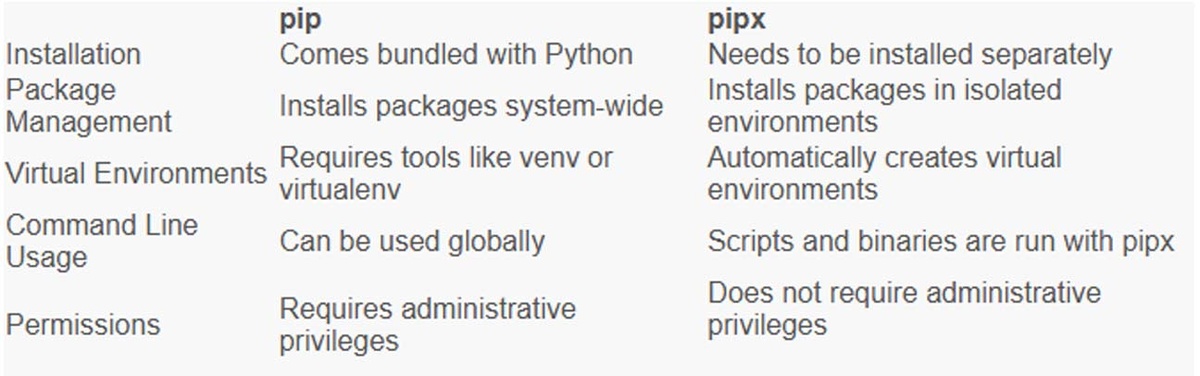
Pip installs packages system-wide by default, meaning they are available to all your Python projects. However, this can lead to conflicts between different packages or versions. To overcome this, you can create a virtual environment using tools like venv or virtualenv.
While pip is a great tool, it does have some limitations. One of its major drawbacks is that it installs packages globally, which can sometimes lead to version conflicts. Additionally, pip installs packages into the system Python environment, which requires administrative privileges. This can be a problem if you don’t have the necessary permissions on your development machine.
pipx is a tool that allows you to install packages in a separate, isolated environment. This is useful when you want to install packages globally, accessible from the command line.
pipx, on the other hand, aims to solve some of the limitations of pip by providing a more isolated and convenient package management experience. It allows you to install and run Python applications in separate virtual environments.
With pipx, you can install Python applications globally without polluting your Python system. This means that each application has its own isolated environment, which reduces the chances of version conflicts. Here is an example of how to install a “black” code formatter using pipx:
The main difference is that pipx installs packages in a separate, isolated environment, while pip installs packages in your main virtual environment. This avoids conflicts between packages and keeps your installation cleaner.
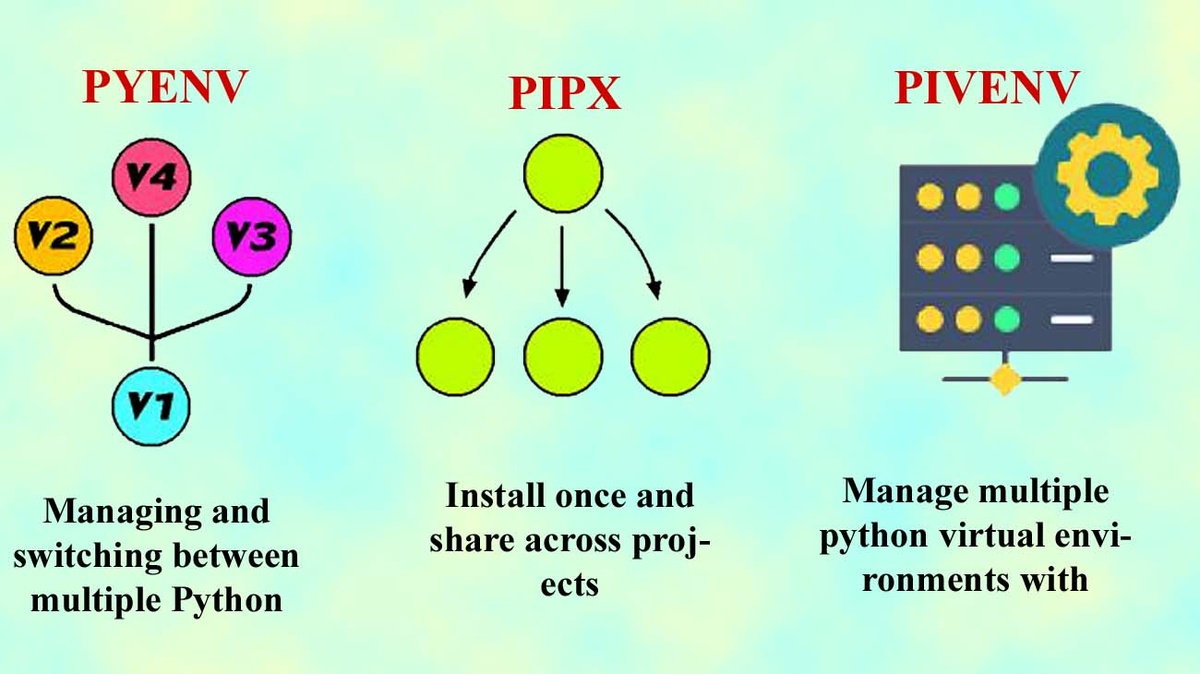
Ultimately, the choice between pip and pipx comes down to your specific situation and preferences. If you need to quickly install packages in your primary virtual environment, use pip. If you need to install packages globally and in isolation, use pipx.
Now that we understand the basics of pip and pipx, let’s compare the two side by side:
C. How to Install pip on Ubuntu
To start installing pip on Ubuntu, make sure your Ubuntu server has Python installed, if not please install the python application first.
How to install pip on Ubuntu is very easy, because the Ubuntu repository has provided a pip installation package. Here's how to install pip on Ubuntu.
root@hostname1:~# apt install python3-pip -y
1. Check pip version
Once you have finished installing pip, you can check the version of pip running on your Ubuntu server.
root@hostname1:~# pip -V
pip 24.0 from /usr/lib/python3/dist-packages/pip (python 3.12)
or
root@hostname1:~# pip --version
pip 24.0 from /usr/lib/python3/dist-packages/pip (python 3.12)
2. Start Installing Packages with Pip
In this section, we will show you some useful basic pip commands. With pip, you can install packages from PyPI, version control, local projects, and distribution files.
To see a list of all pip commands and parameters, type....
root@hostname1:~# pip -help
You can get more information about a particular command by using pip <command> --help. For example, to get more information about an install command, type:
root@hostname1:~# pip3 install --help
You can easily download and install packages with Pip on Ubuntu 24.04 LTS very easily and simply.
How to install pandas with pip
root@hostname1:~# pip install pandas
How to install scrapy with pip
root@hostname1:~# pip install scrapy
To install a package from a requirements.txt file, run .
root@hostname1:~# pip -r install requirements.txt
3. How to Remove Packages with Pip
It would be incomplete if we learned to install pip packages without learning how to remove packages with pip. To remove a package that has been installed with pip, run the following command.
Remove scrapy package with pip
root@hostname1:~# pip uninstall scrapy
Remove pandas package with pip
root@hostname1:~# pip uninstall pandas
D. How to Install pipx on Ubuntu
In this section of the guide we will learn how to install pipx on Ubuntu 24.04 LTS (Focal Fossa). Installing pipx is very easy and can be installed using the following command on Ubuntu and Debian.
root@hostname1:~# apt install pipx
Then you can check the pipx version installed.
Check pipx version
root@hostname1:~# pipx --version
1.4.3
E. How to Install Packages with pipx
To install a package using pipx, you need to follow a simple command syntax, for example To install a Python application, such as cowsay, globally, run the following command.
Install cowsay package with pipx
root@hostname1:~# pipx install cowsay
Install numpy package version 1.24.1
root@hostname1:~# pipx install numpy==1.24.1
If you want to update the version of a package that has been installed with pipx, run the following command
Update all pipx packages
root@hostname1:~# pipx upgrade-all
But if you want to update only certain packages, here are the commands you must run
Update cowsay package
root@hostname1:~# pipx upgrade cowsay
1. How to uninstall a package using pipx
To uninstall a package, you must use the uninstall flag as shown below.
Remove numpy package
root@hostname1:~# pipx uninstall numpy
2. Viewing the Python Package List in pipx
To view a list of all installed applications that use Pipx, run the following command.
View the pyhton package list
root@hostname1:~# pipx list
Installing pipx and pip on Ubuntu is a simple process that can significantly improve your Python development experience. By following the methods outlined in this article, you can easily install and manage Python packages, so you can focus on building your applications.
Both pip and pipx are useful tools for managing Python packages and applications. If you prefer a more traditional, globally available approach, pip may be the right choice for you. On the other hand, if you value isolation and convenience, pipx may provide a better development experience.
Ultimately, the choice between pip and pipx comes down to your specific needs and preferences. It’s a good idea to try both tools and see which one fits your workflow better. Either way, having a good understanding of both tools will make you a more proficient Python developer.