Найти в Дзене
IT Волшебство

How to install IIS on windows 10 (English version)

In this article, we will look at how to enable IIS on windows 10 pro, home, enterprise, LTSC, and so on.So, IIS in windows 10 by default, are in the disabled state, or rather, this component is not installed out of the box, this is done specifically so that the computer resources are not wasted and unnecessary processes are not running on it. To add the necessary component. Press the Win+R keyboard shortcut and type the control panel command in the run window, or go to the control panel via search. Go to programs > enable or disable Windows components. Find among the many items "Internet Services", put a tick against them and click OK. You are starting to install IIS windows 10. After that, we can start working with the IIS service.

In this article, we will look at how to enable IIS on windows 10 pro, home, enterprise, LTSC, and so on.So, IIS in windows 10 by default, are in the disabled state, or rather, this component is not installed out of the box, this is done specifically so that the computer resources are not wasted and unnecessary processes are not running on it. To add the necessary component. Press the Win+R keyboard shortcut and type the control panel command in the run window, or go to the control panel via search.
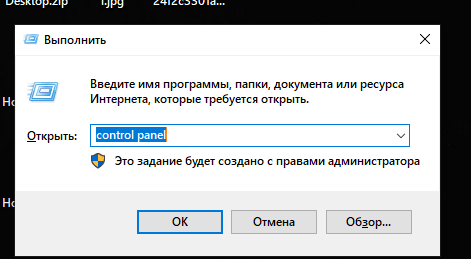
The run window
The run window

Go to programs > enable or disable Windows components.
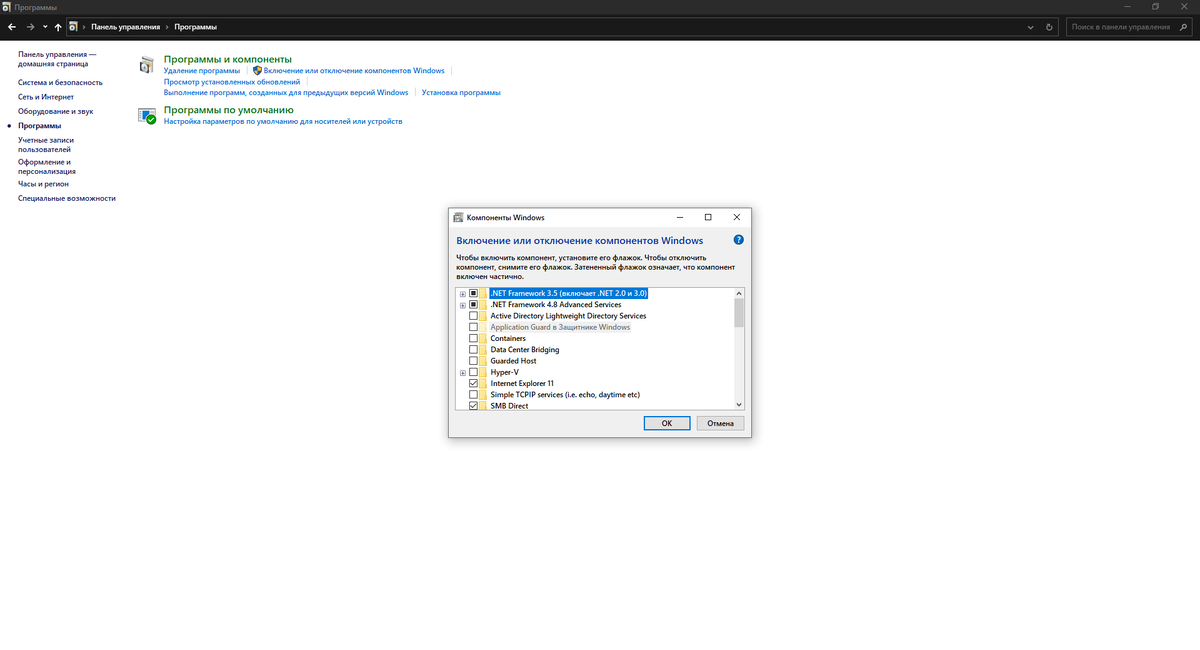
Windows component
Windows component

Find among the many items "Internet Services", put a tick against them and click OK. You are starting to install IIS windows 10.

After that, we can start working with the IIS service.

The window of the IIS Manager